
Note: This project was submitted for optimization sidequest, please go to the end of the readme for the info on that.
With pytterns, you can make your projects pop with patterns and shapes. With this, you can print any pattern, with high customization, in any senario in the terminal. You can even make your custom Patterns through .py based pattern template system. This project has solid security and large compatibility with terminal sizes, color rendering, and OS. If you are working on a terminal project, need a loading page or you need to print shapes in any case, No need to learn each and every pattern. Just use Pytterns!
Pytterns has default patterns which can be used to get basic shapes with quite a lot of customization directly printed in the console.
You may also make your own pattern theme by making your own .py templates. Once added to Pytterns, you can use it in your code RIGHT AWAY!
To get started, you can use 2 options.
- Download the files from git and integrate with your code.
OR
- Download the library through pip. → Download Through PIP
Each Pyttern Pattern file which is made by me is heavily documented, so if you open it in the /patterns folder, you can get a good understanding of the args and how its processed.
Once installed, just use this to start using Pytterns in your code
from pytterns import Pytterns
pt = Pytterns()To make any supported shape, we use the following method to print it in the terminal:
pt.(, char=, center=, color= ...)
gt;, color=<color> ...)
For a simple square of side length 10:
pt.square(10)Output:
* * * * * * * * * *
* * * * * * * * * *
* * * * * * * * * *
* * * * * * * * * *
* * * * * * * * * *
* * * * * * * * * *
* * * * * * * * * *
* * * * * * * * * *
* * * * * * * * * *
* * * * * * * * * *
* * * *
To make this same square with different characters, we can use the char arg.
Char takes in a String Input.
For Example, to make the above square with "x":
pt.square(10,char="x")You get a square made with x
With the center arg, we can center most of the shapes perfectly in the terminal.
Center takes a boolean input, True/False
For Example, to center the above square, we use:
pt.square(10, char="x", center=True)With the color arg, you can color your shapes with the following colors:
- red
- green
- blue
- yellow
- magenta
- cyan
- white
- reset
For example, you can color the above square like:
pt.square(10, char="x", center=True,color="red")With the hollow arg, you can make shapes hollow, and just get its border.
The hollow arg takes in a Boolean, True/False.
For Example, you can make a Red Centered hollow square of radius 10, made with $ like:
pt.square(10, char="$",center=True,color="red",hollow=True)Output:
-$ $ $ $ $ $ $ $ $ $
-$ $
-$ $
-$ $
-$ $
-$ $
-$ $
-$ $
-$ $
-$ $ $ $ $ $ $ $ $ $Terminal render would be proper and centered.
As you may have noticed in above output examples, each shape has a space (filler) between the characters. This is a space by default, but we can customize this through the filler arg.
For Example, for the above hollow square filled with Spaces, we can make it fill with - through:
pt.square(10, char="$",center=True,color="red",hollow=True, filler="-")Output:
- $-$-$-$-$-$-$-$-$-$
- $-----------------$
- $-----------------$
- $-----------------$
- $-----------------$
- $-----------------$
- $-----------------$
- $-----------------$
- $-----------------$
- $-$-$-$-$-$-$-$-$-$Terminal render would be proper and centered.
For special shapes like Triangles or Pyramids, which could be flipped upside down, Direction and Invert can be used.
Used to set pointing direction of a supported shape.
For Example, We can make a triangle point to 2 directions, Left and Right:
pt.triangle(10, char="*",hollow=True,filler="-",direction="left")Output:
*-
*-*-
*- -*-
*- - -*-
*- - - -*-
*- - - - -*-
*- - - - - -*-
*- - - - - - -*-
*- - - - - - - -*-
*-*-*-*-*-*-*-*-*-*-
*-*-*-*-
With this, we can make supported shapes Upside-Down. This can be used with direction arg to gain full control of the shape's pointing.
For example, to make a left triangle inverted we use:
pt.triangle(10, char="*",hollow=True,filler="-",direction="left",invert=True)Output:
*-*-*-*-*-*-*-*-*-*-
*- - - - - - - -*-
*- - - - - - -*-
*- - - - - -*-
*- - - - -*-
*- - - -*-
*- - -*-
*- -*-
*-*-
*-
*-*-
*-
You can make a revolving or static CUBE in Pytterns, which is super cool. To do this, simply use the pt.cube() function. Use the following args for customization.
Defines the character used for the creation of cube
Defines the size of cube. This is NOT the number of characters in an edge of a cube. A sweet spot is 100, Cube would not be visible for size under 40
If enabled, the cube would show a rotating animation and show all of its sides.
This is a really sensitive parameter, it defines the rotating speed of the cube. 5 is a sweet spot
This is the amount of seconds you want the cube to rotate for. Set to None to keep it forever in loop. (Only works when rotation is activated)
This isnt usually to be messed with. It is the time after which the loop is re-run for the next frame. 0.03 is good as it gives about 33 FPS
Angle in radian for the cube to be displayed (if rotation off) or the cube to start rotating from (if rotation enabled)
By default, the edges of cube are colored for full 3d effect. It can be set to default terminal color if this is set to False.
This isnt usually to be messed with. It defines if the new frame should be over written on the old frame or the screen should be completely cleared and re written for next frame.
Its similar to a cube, but takes l,b,h (As a Ratio) parameters which get multiplied with size to determine the length of the edge. You can use the following args for customization.
Defines the size of the cuboid
This is the length of the cuboid
This is the breadth of the cuboid
This is the height of the cuboid
This is the character which is used to build the cuboid
spins the cuboid around to show all its sides for full 3d effect
If rotation is enabled, this defines the speed of rotation
If rotation is enabled, this is the time in seconds for which the cuboid is to be rotated. If no value is provided, it would run indefinitely
This is the angle in radian for which the cube is to be displayed (if rotate=False), or the angle from which the rotation is to be started (if rotate=True)
This colors the edges of the cuboid to give the full 3d effect
This is the time in seconds after which the next frame should be generated. Generally, there is no need to mess with this.
If enabled, it clears the entire screen before displaying the next frame. Generally there is no need to mess with this.
You can write really fancy text through pt.typewrite() Function. The following args could be used for customization.
Using Typewrite is a bit different from the other functions, as its content needs to be written properly for the proper effect..
To write the content for typewrite, you need to create a list with mainly 3 types of data.
-
Color [str]
Color: The color for the text, can be defined using Double Backslash ("\\") followed by color name. So, red is "\\red" and so on.
-
Delay [int/float]
Delay: It is the wait time the typewriter must do before moving on to the next element in the list. It can be defined by just adding a Float or an Int in the list.
-
Text to write [str]
Text to write: This is the text which the typewriter would type, it should be string ONLY.
So, to type
"Hello, World!"with"Hello,"in Yellow and"World!"in Blue, with a delay of 2 seconds in both words, use this.pt.typewrite(["\\yellow","Hello,",2,"\\blue", "World!"])
If set to True, the text would be centered, else, would stick to the left side.
Defines the wait time of the typewriter in between each letter , word or sentence. Type of delay depends on the selected mode. In simple words, if mode is set to "letter" , then this delay would trigger after typing every letter, to give that typewriting feel.
This defines the Style in which the text is typed.
| Mode | What it does |
|---|---|
letter |
Types the stuff, letter by letter, with each letter having delay of the set value |
word |
Types the stuff word by word, with each word havin the delay of the set value |
sentence |
Types the entire element in one go, with each element having delay of set value |
When you pass a color, it can work with multiple text elements in a string. So, if you define a color once at start of your content, all the rest of your elements would follow that same color.
This setting stops the color from bleeding to the next terminal output by re-setting the terminal colors after the entire typewrite statement is done.
If set to false, triggering a color yellow once would lead to the same color continuing for your future terminal outputs too, even if its not typewrite function.
This works completely same as the print()'s end, it defines the last char of the typewriting. It is "\n" by default.
When in word mode, splitter can be used if the words are to be split through a specific character.
Eg. splitter="e"
Content: "HeyeWorlde!"
Split Output: H, y, World, !
(By default splitter is set to a space, so it splits on every space to separate words of a sentence, Generally, You do not need to edit this)
You can make a cool hacker rain effect through pt.rain(), and like all the other functions, you can customize a LOT too, use these args!
Determines the vertical size of the hacker rain. set to None to run by duration.
Centers the hacker rain in the terminal
The time in seconds to run the hacker rain, set both duration and size to None to run infinitely until killed.
The characters which should be randomized to create the hacker rain effect. By default it is set to "X01@#$%&*"p;*"
The time in seconds after which a new row should appear in terminal. This is used to control speed. Higher delay=Lower speed.
Name of the color of the main random text.
The probability out of 100 for a character to have the glitch effect.
Separate color of the glitched characters.
If any prefix has to be applied on start of each line on the left side, it can be done from here.
If the characters should be bold or not.
The probability out of 100 for a character to be present at a space. In simple words, reducing it would cause random empty spaces in the effect.
Pytterns can also make Panels. To make a Panel or List, you can use the pt.panel() Function
Panels are extremely customizable. You can use the following arguments by default.
Horizontal Width of the Panel
To horizontally center the panel in terminal
The Heading/Title of the panel
List of items to add to contents of panel
Set minimum distance of text from borders
-
v_borderVertical Line Characters -
h_borderHorizontal Line Characters -
top_leftTop Left Corner Merger Character -
top_rightTop Right Corner Merger Character -
bottom_leftBottom Left Corner Merger Character -
bottom_rightBottom Right Corner Merger Character
This makes the border characters bold, thick and bright.
This makes the content itself center within the panel's borders.
All Color args work same as they did in Shapes, and would work same in all types of patterns.
pt.panel(
size=80,
content=["Onion","Carrot","Pencils","RTX4090"],
title="Shopping List",
padding=2,
border_bold=True,
center_content=False,
color="Magenta"
))You may also use Colorama's editing in the content, to give each line its own color and style. The framework adapts accordingly.
Now, you can make progress bars on pytterns too! Use the pt.progress() function. The following args can be used for customization.
Defines the horizontal width of the progress bar. If its supposed to expand till the edges, use -1 or leave blank.
Centers the progress bar horizontally.
Defines the progress of the bar. If on a size 100, a progress of 50 is passed, the bar would show half filled.
Defines what character to fill in the shaded region of the loading bar
Defines what character to fill in the blank region of the loading bar
Defines the color of filled/shaded region
Defines the color of the blank region
Note: You should be using 1 char for the fill and blank arg. If you are using 2 or more char, divide the size with the same number to keep the size accurate.
The program has built in security for preventing malicious script runs. If the security is breaking your custom themes, and you are confident that its safe, you can use this to load pytterns without security.
from pytterns import Pytterns
pt=Pytterns(break_my_system_security_and_allow_destruction=True)Through templates, you can make custom patterns based on our own code, and seamlessly use it just like you did with the default code.
This may sound difficult, but you don't even need a bit of advanced programming for this.
Firstly ensure Pytterns is installed in your project. Then make a folder /patterns in your project's root directory.
You can create files in this folder now, and through this you can add custom patterns to your projects.
Once you make a .py file, start with the draw() function and define the args you need for the pattern you are trying to make. Size and Center is always must to keep, rest args are based on your wish.
For Example, this is the function definition for Triangles.
def draw(size,center, char="*", filler=" ", hollow=False, direction="left", invert=False):In this, Size (int) is the shape's size, and Center is a boolean telling if trigger has opted for centering or not.
⭐Note: If you wish to use centering in your code, you need not to make any centering system in your template file. Just make sure its compatible with our centering and you are good to go. Similarly, you also do not need to worry about colors, those get added automatically too!
After this, you can just make your pattern function, and print the output in that function itself and the Pytterns takes care of everything!
With pytterns, you can also make terminal animations/loading-graphics.
For Example, if you want fast upward moving arrows, use this:
import time
colors=["red", "green", "yellow", "blue", "magenta", "cyan"]
while True:
for i in range(0, 6):
pt.triangle(i, char="-", color=colors[i], hollow=False, center=True)
time.sleep(0.05)
Output:
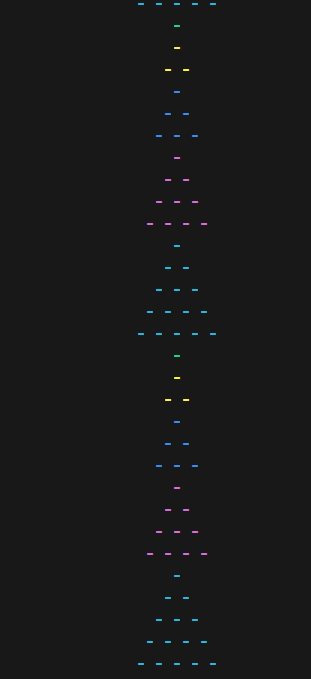
*It would be animated due to loop, demo videos in /images folder
Or, For Example you can use my favorite, the Square Loading:
import time,os
colors=["red", "green", "yellow", "blue", "magenta", "cyan"]
while True:
for i in range(0, 6):
pt.square(i, char="-", color=colors[i], hollow=False, center=True)
time.sleep(0.05)
os.system("cls" if os.name == "nt" else "clear")For this you would need to see the video at /images folder
You can use this to make a fun dynamic display of text through Panels.
import time, os
from colorama import Fore, Style
from pytterns import Pytterns
pt = Pytterns()
os.system('cls' if os.name == 'nt' else 'clear')
print("\033[?25l", end="")
logs = [
f"{Fore.CYAN}My code is hungry... it hasn't seen a 'Star' in weeks.",
f"{Fore.RED}If you use 1960s Print() statements, {Style.BRIGHT}Users CRY.",
f"{Fore.GREEN}I spent {Style.BRIGHT}3 business days {Style.NORMAL}fixing this right border.",
f"{Fore.YELLOW}My family thinks I'm {Style.BRIGHT}studying.{Style.NORMAL} I'm actually just making {Style.BRIGHT}boxes centered.{Style.NORMAL}",
f"{Fore.LIGHTBLUE_EX}Please use Pytterns or I'll be forced to use Light Mode.",
f"{Fore.MAGENTA}Status: Desperately seeking validation (and a snack).",
f"{Fore.MAGENTA}and Maybe a Break.. idk."
]
try:
for i in range(1, len(logs) + 1):
if i ==len(logs):
time.sleep(4)
print("\033[H", end="")
pt.panel(size=80, content=logs[:i], title="DEV-DESPERATION",padding=2,
border_bold=True, center_content=False,color="Magenta"
)
time.sleep(3)
print(f"\n{Fore.WHITE}{Style.BRIGHT} >> Hehe hope this was fun :)"un :)")
finally:
print("\033[?25h")Video in /images for the output
The framework is extremely easy to run and is PERFECT for beginners or even high level devs. I believe optimization is BOTH, making the code run better, and making the code simpler and easier to understand for the users. In this project, I have added several optimization stuff wayy before the sidequest even came out.
Pytterns has a module level cache, By caching the previously used patterns for future reuse, It massively got the cpu and disk io down. Without this, if you had a loop, it read the pattern file from the disk every time the loop ran, which was quite bad on the disk IO. To fix this, autoload system was implemented and the cache was added. (Explained below)
For the patterns that dont need a live print, like 2d shapes or panels, Pytterns has a proper buffer system. Instead of printing stuff piece by piece which shows weird artifacts on the terminal, Pytterns waits out the entire output and makes a buffer, and then prints it all at once nicely structured.
As this is a framework for CLI, this fixes 100% of the tearing in SSH connection when used in quick loops.
As pytterns uses centering almost everywhere, and it was one of the main CPU Consumers, as each line had to be calculated multiple times to get the centering right due to the invisible color codes which counted in len() but were not visible in terminal, leading to tearing of things like Panels.
I used regex based filtering, which filtered out the color codes and I got the centering logic to O(n) times relative to string length.
In pytterns, by default on import, NO module is loaded into the ram. I know that if this project goes big, there could be thousands of patterns built into this. So on import, there is only the core framework which is imported.
Only the pattern which is run, is imported directly from the disk at that specific time of running the line of code.
Also, While defining the pt variable, we can pass the functions we need to autoload, this would keep those loaded in ram at the very start of the program, so we can make snappy looking loops with already loaded stuff.
You must have scrolled through the entire readme to reach this. I have put my complete hard work in this project, both in the code part as well as in the explanation part. I believe that the code wont be of any use if it cant be explained to other devs in simple language. The docs are written in very basic language and I have tried to put as much of examples and depth to it as possible.
This project is all open for your contributions! You can make more patterns for the default installation, and fix common rendering bugs. Lets together make the best python patterns library in the world!!
MIT
